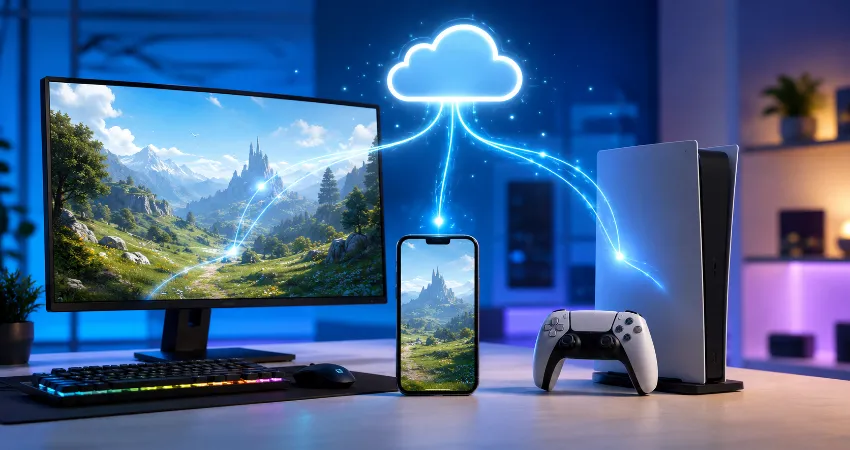
Modern gaming is no longer limited to a single device. Many players today own a gaming PC, a smartphone, and one or more consoles, but the biggest challenge is keeping game progress synchronized across all platforms. Nobody wants to restart a long adventure, rebuild a character, or repeat dozens of hours of gameplay just because they switched devices.
The ability to continue the same save file on PC, phone, and console is known as cross-platform progression or cross-save support. When properly configured, it allows players to move between devices while keeping their achievements, inventory, settings, and progress connected. However, the process depends on the game, platform ecosystem, and available cloud services.
From my experience managing game libraries across multiple devices, the most important factor is not the hardware itself but the account system behind the game. A reliable cloud save setup can make switching devices almost effortless, while a poorly configured system can result in missing progress or duplicate saves.
Understanding How Cross-Save Technology Works
Cross-save technology works by storing your game progress in an online account instead of keeping it only on your device. Traditionally, save files were stored locally on a PC hard drive, console storage, or phone memory. If you changed devices, your progress stayed behind unless you manually transferred the file.
With cloud-based saving, the game uploads your progress to a secure online server. When you sign in on another supported device, the game downloads the latest save data and allows you to continue from where you stopped.
However, cross-save does not automatically mean every game works everywhere. Some games support complete progression sharing, while others only share specific elements such as achievements, purchases, or account information.
Checking If Your Game Supports Cross Progression
The first step before trying to share a save file is checking whether the specific game supports cross-platform progression. Developers usually mention this feature on their official websites, game settings pages, or account management sections.
Some games support PC and console synchronization but not mobile devices. Others may support mobile and PC but have limited console compatibility. Understanding these restrictions saves time and prevents accidental loss of progress.
Common Features To Look For
When researching a game, look for terms such as cloud saves, cross-save, cross-progression, linked accounts, account synchronization, or shared progression. These features indicate that your progress can potentially move between different platforms.
Using Cloud Saves To Keep Progress Connected
Cloud saving is the most common method for maintaining the same save file across multiple devices. Services connected to gaming platforms automatically upload and download save data whenever you play.
On PC, cloud saves are often handled through gaming platforms and launchers. Consoles usually provide their own cloud storage systems, while mobile games commonly connect progress through user accounts.
My recommendation from practical experience is to enable cloud synchronization before starting a serious gaming session. Waiting until after hundreds of hours of gameplay can create unnecessary problems if local and cloud files become different.
Linking The Same Account Across PC, Phone, And Console
The account you use inside the game is usually more important than the device itself. Many modern games require players to create a developer account or connect existing platform accounts.
For example, your PC account, console profile, and mobile login may need to be connected through one central gaming account. Once linked, your progress can be recognized regardless of where you play.
A common mistake is creating separate accounts on different devices. If you accidentally start a new account on your phone instead of connecting your existing one, your original progress may not appear.
Playing The Same Save File Between PC And Console
PC and console cross-save support has become increasingly common, but it depends heavily on the game’s ecosystem. Some titles allow players to move freely between desktop and console, while others restrict saves to one platform family.
Before switching devices, make sure your game account is connected correctly and that the latest save has successfully uploaded. It is also helpful to manually check synchronization settings instead of assuming everything is working automatically.
Using Mobile Devices With Existing Game Progress
Mobile gaming has improved significantly, and many developers now design games that work across phones, tablets, PCs, and consoles. The process is usually simple: install the mobile version, sign in with the same account, and allow the game to download your saved progress.
Mobile devices may have different control systems and performance limits, so some games adjust graphics settings or available features. Your progress can remain the same even if the gameplay experience changes slightly.
Manual Save Transfer: When Cloud Save Is Not Available
Not every game supports cloud synchronization. In some cases, players need to transfer save files manually. This method is more common with PC games because users can access folders containing saved game data.
Manual transfers require caution because incorrect file replacement can damage existing progress. Always create a backup copy before moving or replacing save files.
For console and mobile games, manual transfers are usually more restricted because operating systems protect save locations. In these cases, official account linking is normally the safer option.
Common Problems When Syncing Save Files
One of the most frustrating situations is opening a game on another device and finding that the old progress is missing. This usually happens because the wrong account was connected, cloud synchronization was disabled, or the latest save was not uploaded.
Another issue is conflicting save files. If you play offline on one device and online on another, the system may find two different versions of your progress. Choosing the wrong file can overwrite important data.
How To Avoid Save File Problems?
Always check synchronization status before leaving a device. Keep automatic updates enabled when possible, avoid switching accounts frequently, and maintain backups for important games that do not provide reliable cloud storage.
My Personal Approach For Managing Multiple Gaming Devices
After using different gaming platforms, I found that organization is the key to a smooth experience. I use one main account whenever possible and regularly verify that cloud saves are working correctly.
I also avoid starting a new game session on another device until I confirm that the previous device has finished uploading progress. This small habit prevents most synchronization issues.
The goal of cross-save technology is convenience. A good setup should allow you to enjoy gaming anywhere without worrying about losing progress.
FAQs About Playing The Same Save File On Multiple Devices
1. Can I use the same save file on PC, phone, and console?
Yes, but only if the specific game supports cross-save or cross-progression features. You usually need to connect all devices through the same game account. Some games allow complete progress sharing, while others only support limited features.
2. Do all games support cross-platform save files?
No, cross-platform saving is not available in every game. Developers must build this feature into their systems. Older games and some platform-exclusive titles may only allow saves on the original device.
3. Is cloud saving required to play the same progress everywhere?
In most cases, yes. Cloud saving provides the connection between different devices by storing your progress online. Without cloud support, you may need manual save transfers, which are often more complicated.
4. What happens if I use different accounts on different devices?
Different accounts usually create separate game profiles. Your original progress may not appear because the game cannot identify that the accounts belong to the same player. Always link devices to one main account.
5. Can I transfer a PC save file directly to my phone?
Sometimes, but it depends on the game. Some PC games allow manual save transfers, while mobile versions may use different file structures. Account-based synchronization is usually the easiest solution.
6. How can I know if my save file has been uploaded?
Most games show synchronization messages or cloud status indicators. You can also check account settings or cloud storage options provided by the platform to confirm that your latest progress is saved.
7. Can I lose my progress during device switching?
Yes, especially if cloud synchronization fails or you overwrite a newer save with an older one. Creating backups and checking save status before switching devices reduces this risk.
8. Do console and PC versions always share the same progress?
No. Some games support PC-console progression sharing, but others keep separate save systems. Always check the game’s official support information before expecting your progress to transfer.
9. Can I play offline and sync later?
Many games allow offline play, but synchronization usually happens after you reconnect to the internet. It is important to allow enough time for the latest save file to upload before changing devices.
10. What is the best way to manage games across multiple devices?
The best approach is using one account, enabling cloud saves, keeping software updated, and regularly checking synchronization settings. A simple organized setup prevents most save-related problems.
Conclusion
Playing the same save file on PC, phone, and console is now easier than ever because of cloud technology and connected gaming accounts. While not every game supports complete cross-device progression, many modern titles provide reliable ways to continue your journey anywhere.
The most effective strategy is to use the same account everywhere, enable cloud synchronization, and regularly verify that your progress is safely stored. With the right setup, switching devices becomes a convenient part of gaming rather than a frustrating obstacle.